Blog

Lab B at Champlain Mini Maker Faire 2014

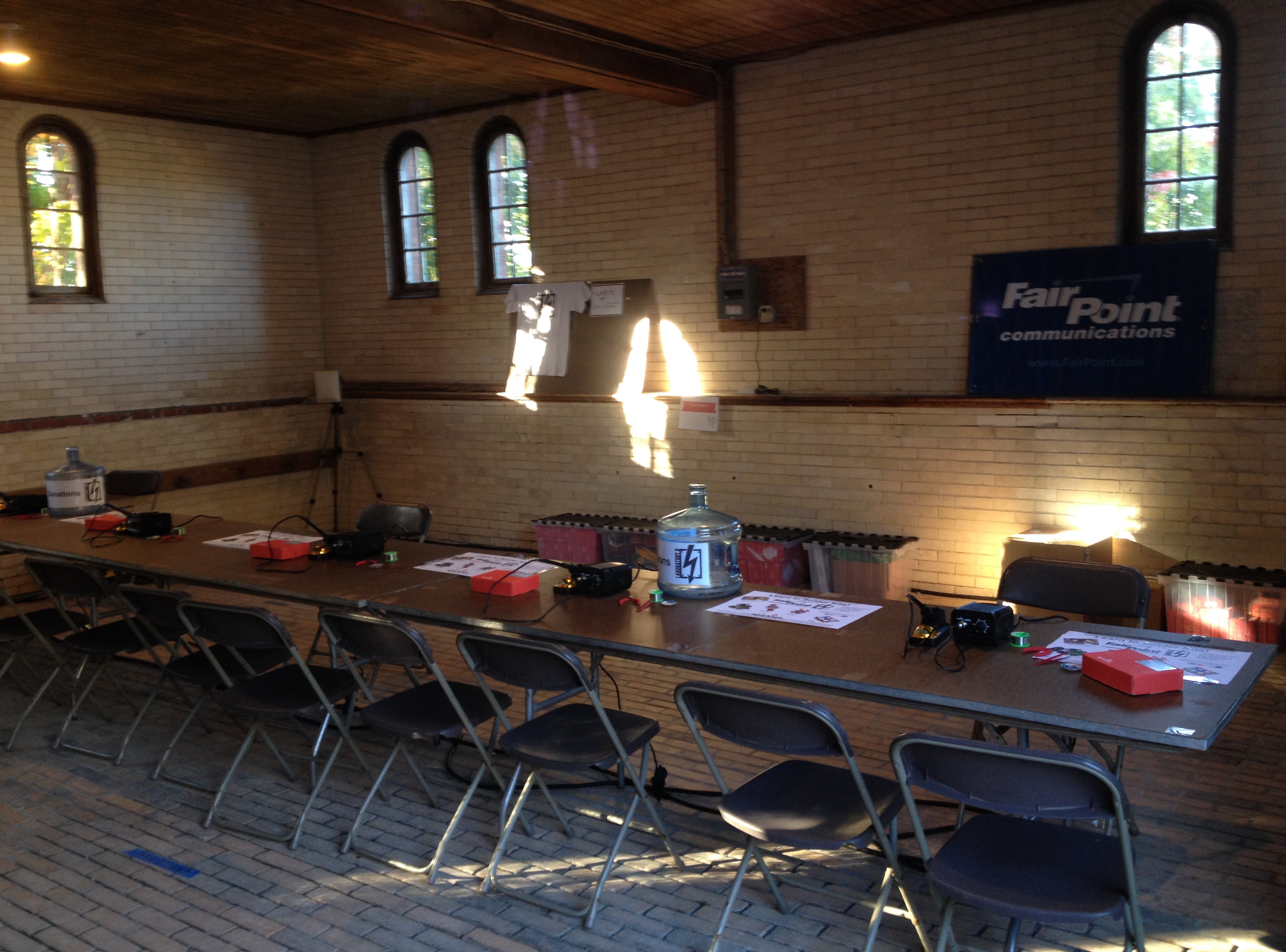
Laboratory B is all set up and ready to see you at Champlain Mini Maker Faire this weekend!  The event is on Sat. October 4th 10am – 5pm,  and Sun. October 5th 11am-4pm at Shelburne Farms in Shelburne Vermont.

Lab B has been at the Maker Faire since it started 3 years ago, and like last year and the year before, we’ll be teaching kids & adults how to solder! FairPoint Communications made a donation to help provide kits, and we have four kits from SparkFun in the mix this year; Weevil Eye, Big Time Watch, Simon Says & Mr. Roboto.

From our excerpt in the schedule:

“Join the folks at Laboratory B for a self-paced soldering workshop. We bring the soldering irons and the kits, you bring the desire to learn.  We will have kits from SparkFun and all the required supplies and safety gear for you to sit down and learn how to solder, and when you finish you take the kit home!  Have you soldered in the past but are not familiar with some of the newer techniques such as surface-mount soldering?  No problem!  There will be beginner kits, intermediate kits, and advanced level kits to fit all skill levels.”

pre_maker_faire_2014

Aaron’s piHouse Monitor part 2

In March I posted about using my Raspberry Pi to monitor my furnace and the temperature of my apartment.  I moved over the summer and the new apartment does not have the same type of heating that the last apartment did. So I had to make some changes.

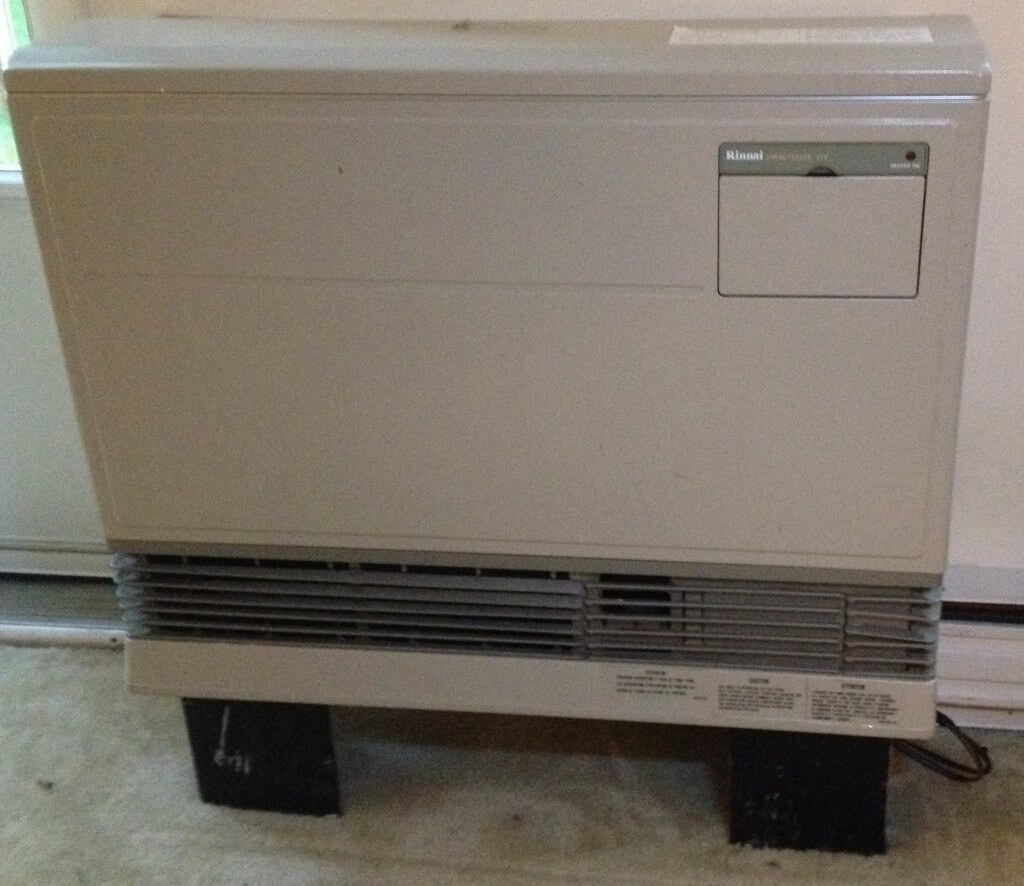
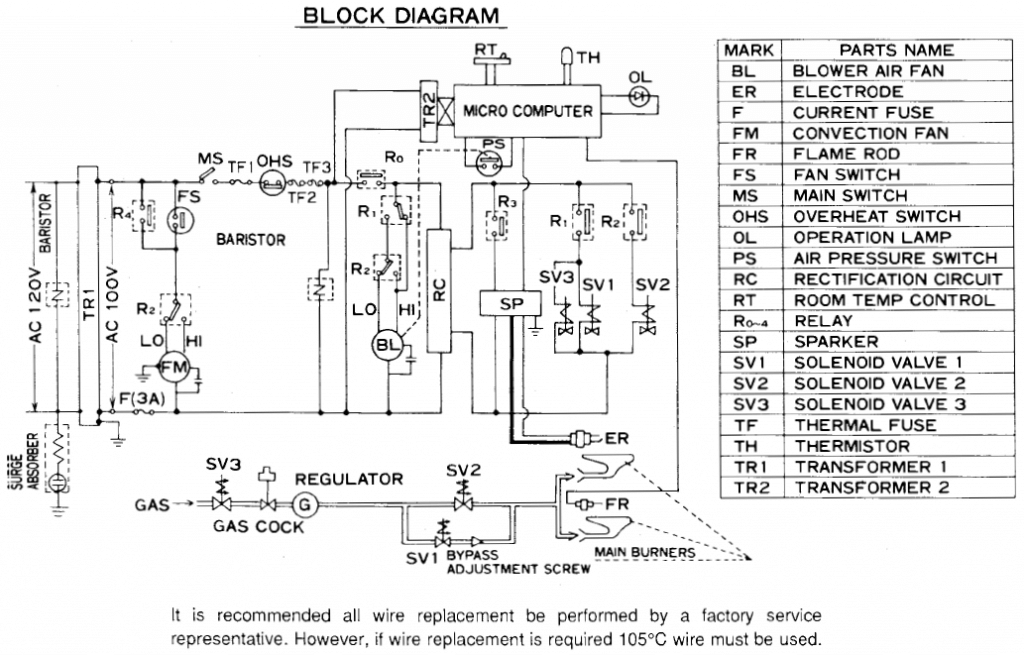
The Pi now interfaces with a Rinnai heater, which was slightly more complicated than the furnace thermostat.

Here are some highlights, you can find the whole story here.

The new heater, a Rinnai  Energy Saver-551F
The new heater, a Rinnai Energy Saver-551F
rinnai_block_diagram
The Wiring Diagram and the Block diagram are on the inside of the front cover
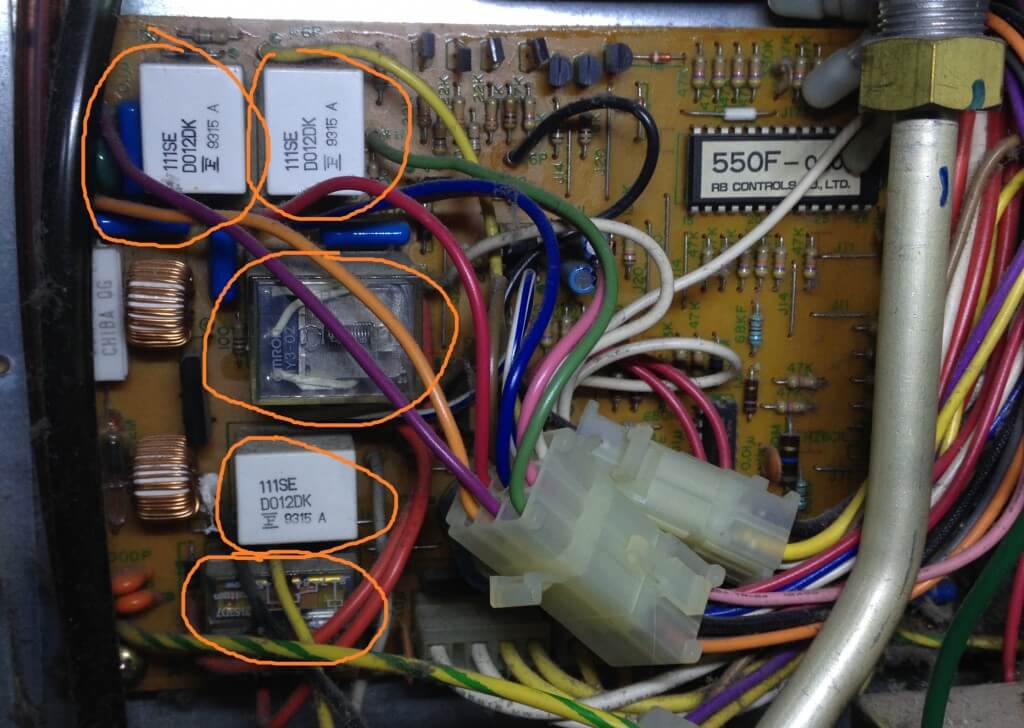
Photo of “MICRO COMPUTER PCB” with relays circled
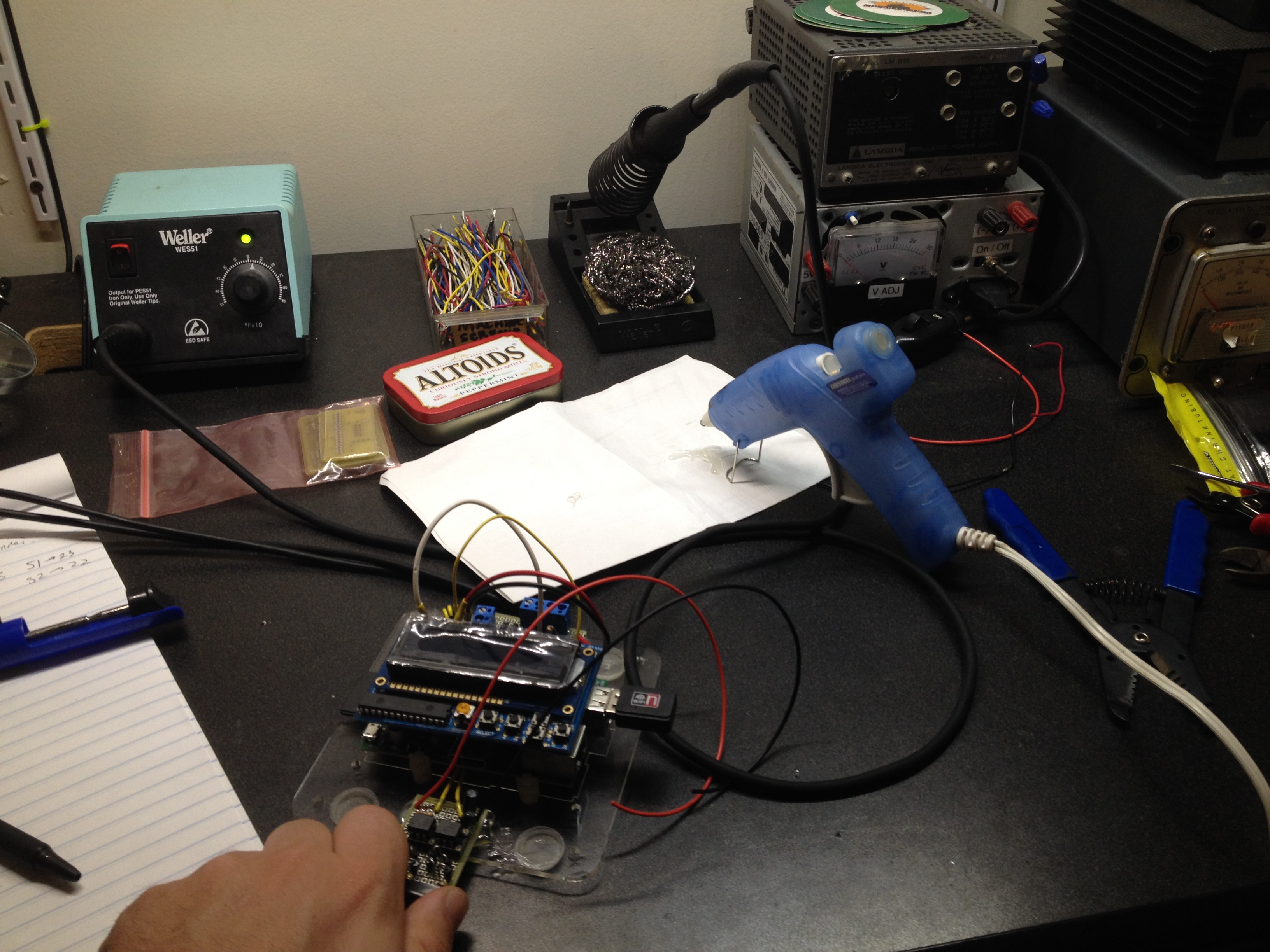
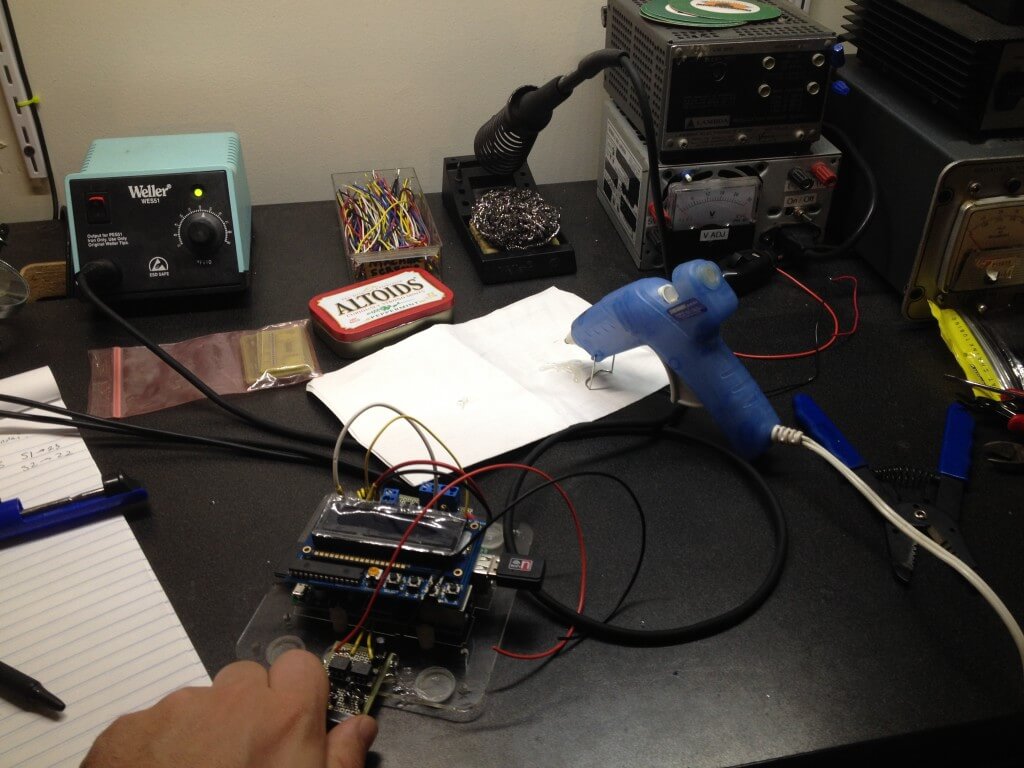
Assembling the whole thing

Join us on Github!


Unaltered image
Unaltered image

Altered image
Image with message “One if by land, two if by sea”

Keep up with some of the Laboratory B open source code by joining us on GitHub!

Last weekend Doug whipped together a toy steganography device called “Stegosaurus” [github] — it will take a PNG image, and using a (very very basic) steganography [wikipedia] algorithm stores a payload in the least significant bits of the color definition of pixels in an image. It’s a node.js module, and you can even install it with NPM.

It could use a little improvement if anyone is interested in forking it! It needs some testing with binary files. It needs a way to store the length of the message. And ideally, it’d use a pre-shared key (maybe?) to allow you both: A. define where the payload is hidden in the image, and B. actually encrypt the payload (which is, as of now, unencrypted). Which makes it so it doesn’t follow Kerckhoff’s Principle [wikipedia].

…Unfortunately every single message is decoded as “Drink more ovaltine” [youtube] (…just kidding. it’ll do whatever payload you want)

Warming up the Foundry!

When Laboratory B got started we were excited about the possibility of other hacker/maker/community workshop spaces starting up and sustaining in Vermont. That’s why we created Vermont Hackerspaces Inc as non non-profit designed to help others do great things. The Foundry is a community workshop getting started in the Northeast Kingdom. Building on the grit, and hard work they are going to bring together a community of creators, tinkers, crafter, artist and entrepreneurs. This great community is going to build a great new space for creation and innovation!

On July 7th, Vermont Hackerspaces Inc, agreed to become the Foundry’s fiscal sponsor while they get started. The Foundry is looking to develop it’s own 501(c)3 but it’s a long when from getting going to handling your own books. Check out the website or  Foundry’s facebook page and Foundry Info Pack for more info.


Life Giving Bazooka – An Ethereum Contract

tldr? “Life giving bazooka” is an example of an Ethereum contract that represents a pyramid scheme. Check out the scheme @ github. It’s called “life giving bazooka” as a knock on multi-level-marketing schemes.

We’ve been having a lot of fun having some nights where we’re chatting up Crytpocurrency, and recently we got together and had a working session taking a look at Ethereum. We got the client up and running, and moments later gdot had a little “banking contract” running, from an LLL (lisp-like-language) tutorial.

Which is awesome… But, I really wanted to write in the “c-like-language” (CLL) — that’s what I tend to get. So, I found Vitalik’s got a CLL compiler, but it’s pretty alpha. Also, it’s made progress to work with PoC4, which isn’t released yet. All the main releases of the clients (which you can download), are PoC3 based. So, I went ahead and fixed a few things in his compiler, and I’m maintaining my own branch @ https://github.com/dougbtv/compiler/tree/poc3-compat.

But, to make it easier, I’ve been maintaining my own pre-processor (inspired by the C pre-processor) that makes a few things a little easier to work with. You can download my cll-preprocessor at github, and it includes submodules that fix the things that I needed to get Vitalik’s compiler working properly, especially with PoC3.

So… Where’s this pyramid scheme!?! It’s also on github! There’s quite a bit more information there for you to read about how it works, and instructions to run it if you so please.

Quick Links

Aaron’s piHouse Monitor

I’ve been working on a Raspberry Pi project and got it running this weekend.  This post is about the hardware and the installation.  I will post later about how the code works.
OverviewIntroduction

I have been using microcontrollers for a long time now.  I started in college as part of the program and have never stopped.  Professionally, educationally, hobby, I’ve done projects of all types.

Recently I decided to try something with a Raspberry Pi.  It is the next step up, basically being a little computer.  This was so I could play with Linux again (it’s been years) and do something with a web browser.  These are things I don’t have experience with and have been interested in learning for some time.

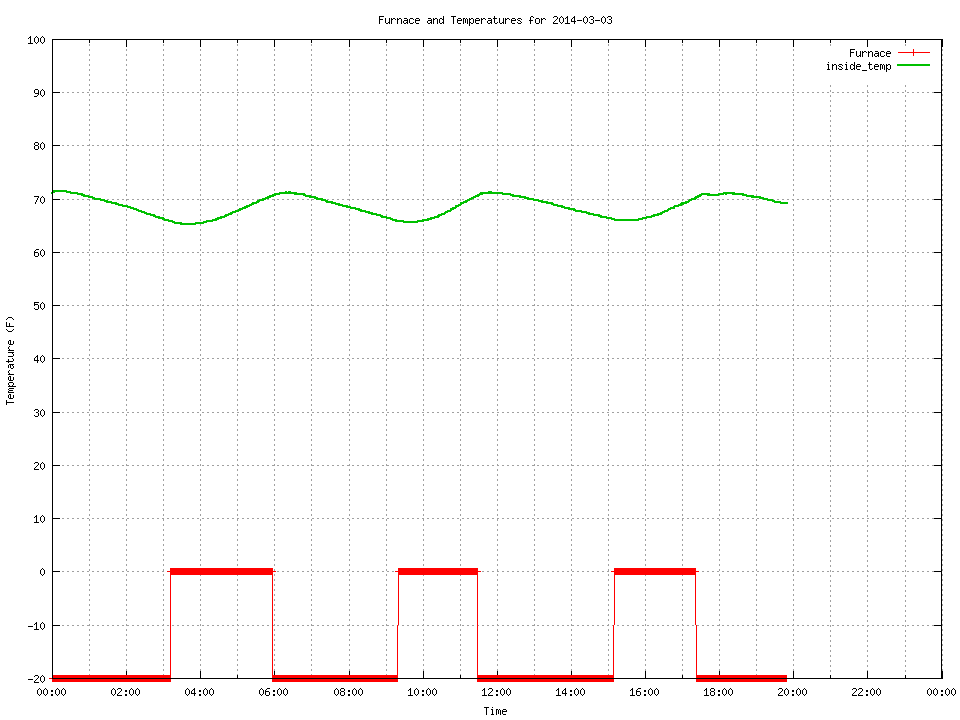
The project I settled on was a monitor for the furnace in my apartment.  This monitor will measure temperature(s) and sense if the furnace is running, then log this data.  There will be a web interface that will draw graphs of the data on a daily basis.  There will also be an LCD screen on the pi so that I can see the current data without needing a web browser.

Part 1: Hardware

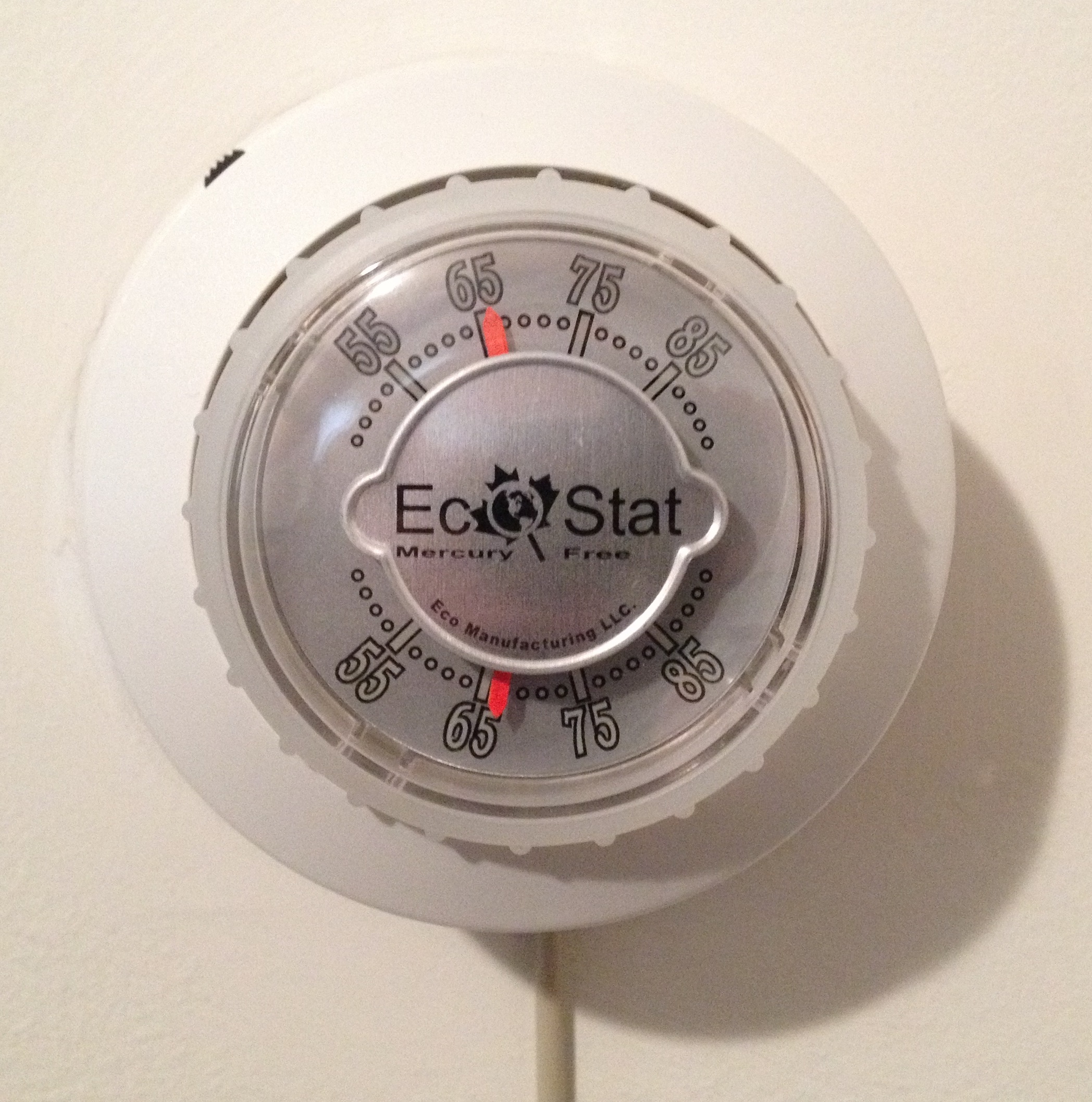
The first step was to make sure I could sense whether the furnace was running.  My furnace is controlled by a thermostat.  A thermostat is a temperature controlled mechanical switch.  Mine looks like this (The wire hanging down was added later):
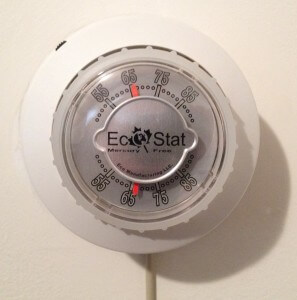
Photo Mar 02, 17 01 40 edit


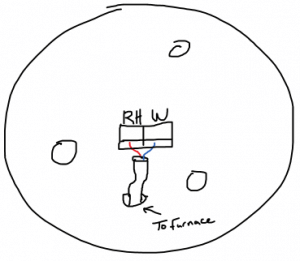
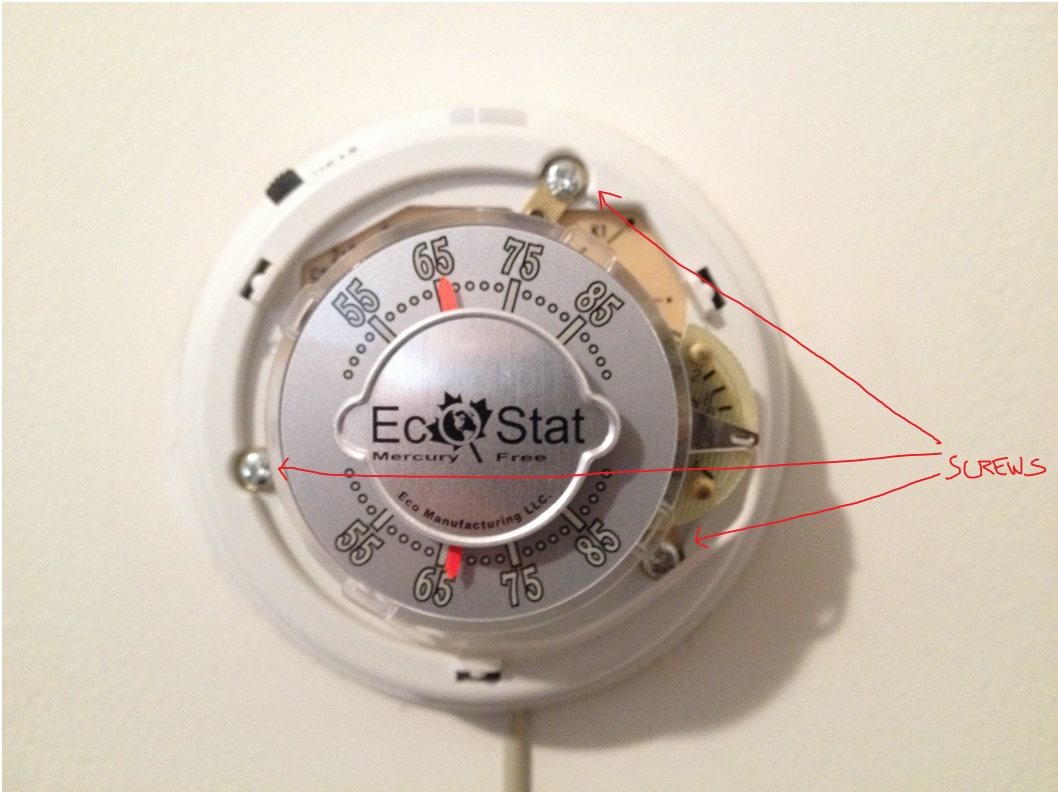
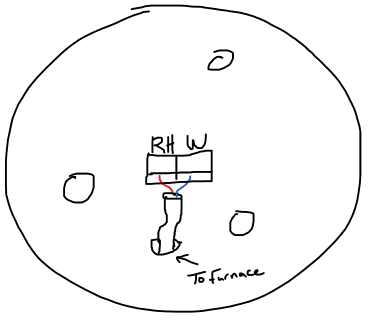
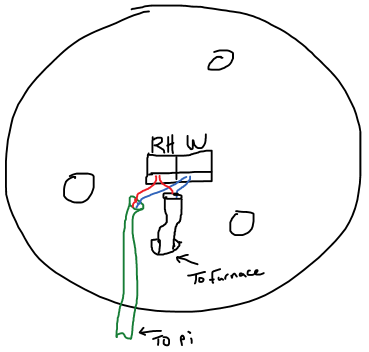
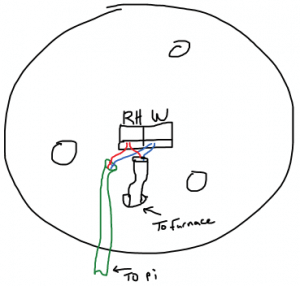
I needed to open this up to see how it worked.  So, I pulled off the ring on the front and exposed 3 screws holding it to the wall.  I took out the screws and pulled the switch off the wall.  I was left with a mounting plate that included a set of screw terminals with a 2 conductor wire attached.  This is the wire running to the furnace in the basement that controls the furnace.
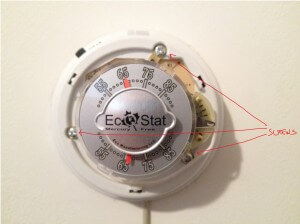
Photo Mar 02, 17 02 01 - Edit thermostat


The screw terminals were labeled as RH and W.  I took out my mult-meter and started doing some measuring.

Open (Furnace off): RH -> W, 25.8 VAC
Closed (Furnace on): RH -> W, 0 VAC @ 95mA

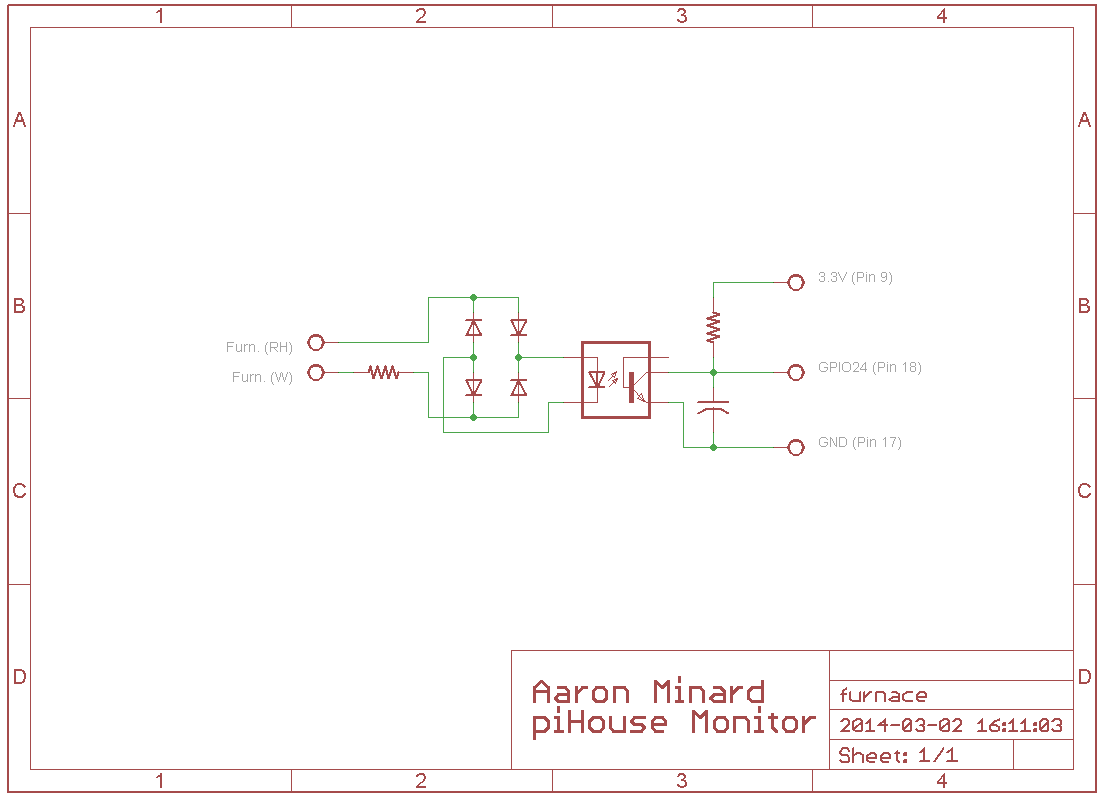
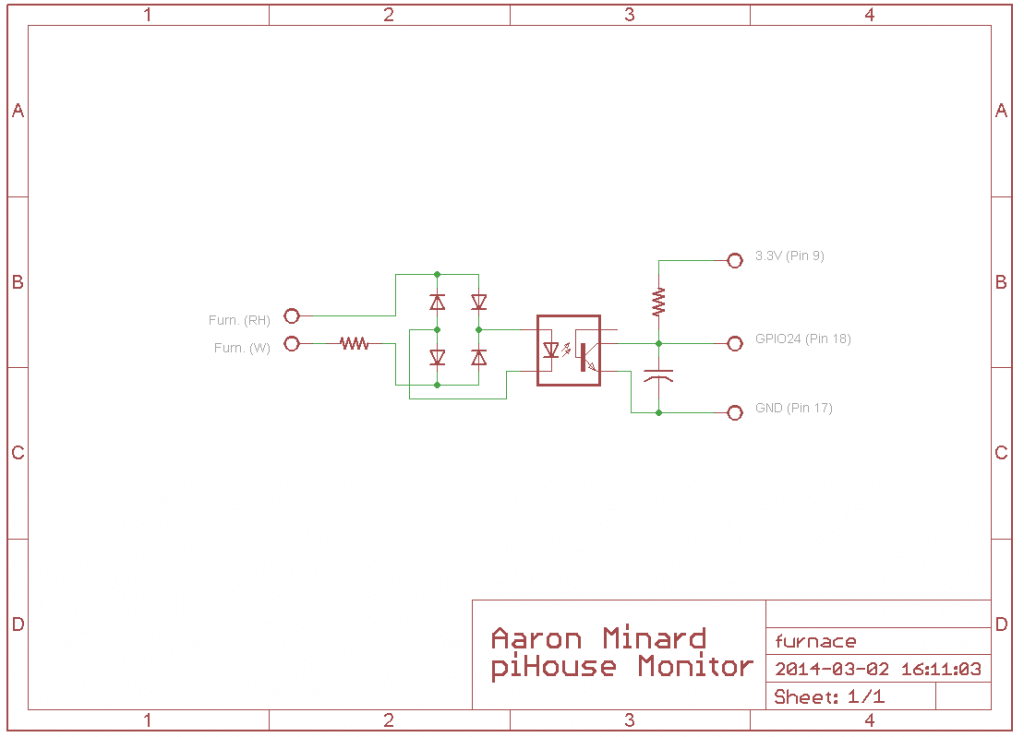
This means that I need to monitor the voltage across terminals RH and W.  If voltage is present, the furnace should be off.  The 95mA is mostly unimportant because the thermostat is going to stay in place.  I just need to make sure the pi doesn’t draw so much current that it turns on the furnace on it’s own.  I drew up the below circuit to accomplish this using a rectifier circuit and an opto-isolator fed into GPIO24.
furnace 

In this circuit, when the thermostat is open, the 10K resistor attached to the terminals limits the current feeding the 4 diodes, which function as a bridge-rectifier.  This rectified AC then drives the LED of the opto-isolator.  When the LED is lit, is turns on the transistor, shorting GPIO24 to GND with a 1uF cap for smoothing because its an AC signal.  When the thermostat is closed, there is no current driving the opto-isolator and GPIO24 is pulled up to to 3.3V by a 100K resistor.

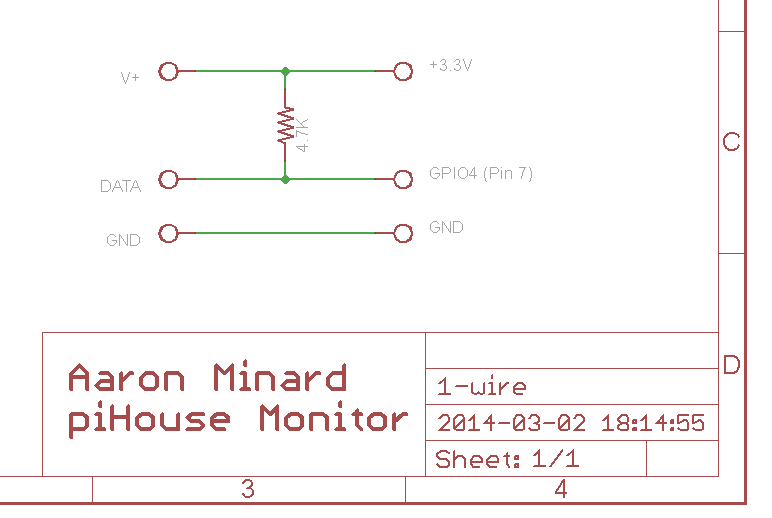
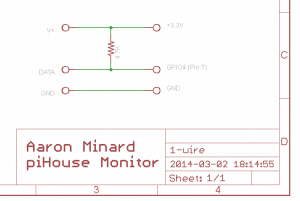
With the furnace monitoring designed, I had to decide on a temperature sensor.  Unfortunately, the raspberry pi doesn’t have any built-in analog inputs.  This was a little disappointing because it’s a standard feature on most microcontrollers I have used, however this is a computer.  After a little research, I settled on a sensor that uses the Dallas 1-wire protocol.  This is a serial bus that is similar to I2C.  I liked it becuase there is pi support and since it is a bus, it is expandable (multiple sensors) without using more inputs.  I found some DS18B20 1-wire Temperature Sensor ICs in a probe package with wire attached on Amazon, a bought a few.

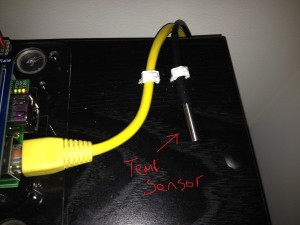
Following the datasheet recommendations, I wired up the temp sensor like this:
1-wire 

The last piece for this was an LCD screen.  I did some research and picked a product from Adafruit that has a 16X2 RGB LCD Screen and 5 buttons on a “shield” style board that plugs into the GPIO header on the pi.  I ordered one and when it came in, I soldered it together.

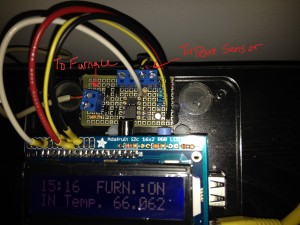
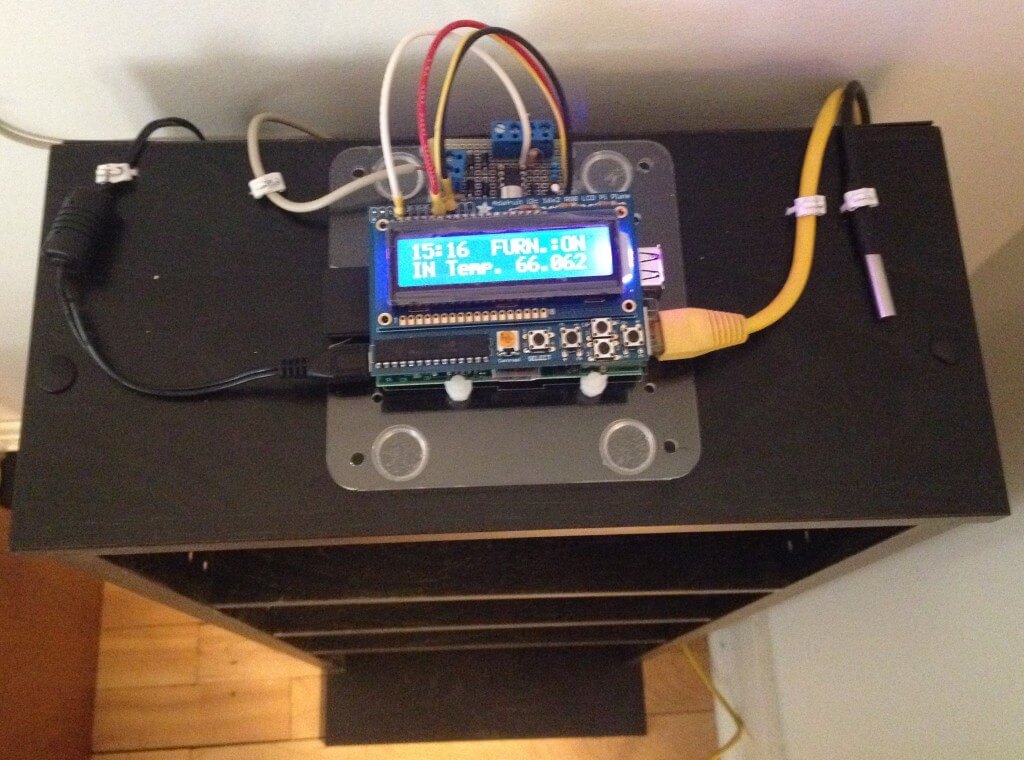
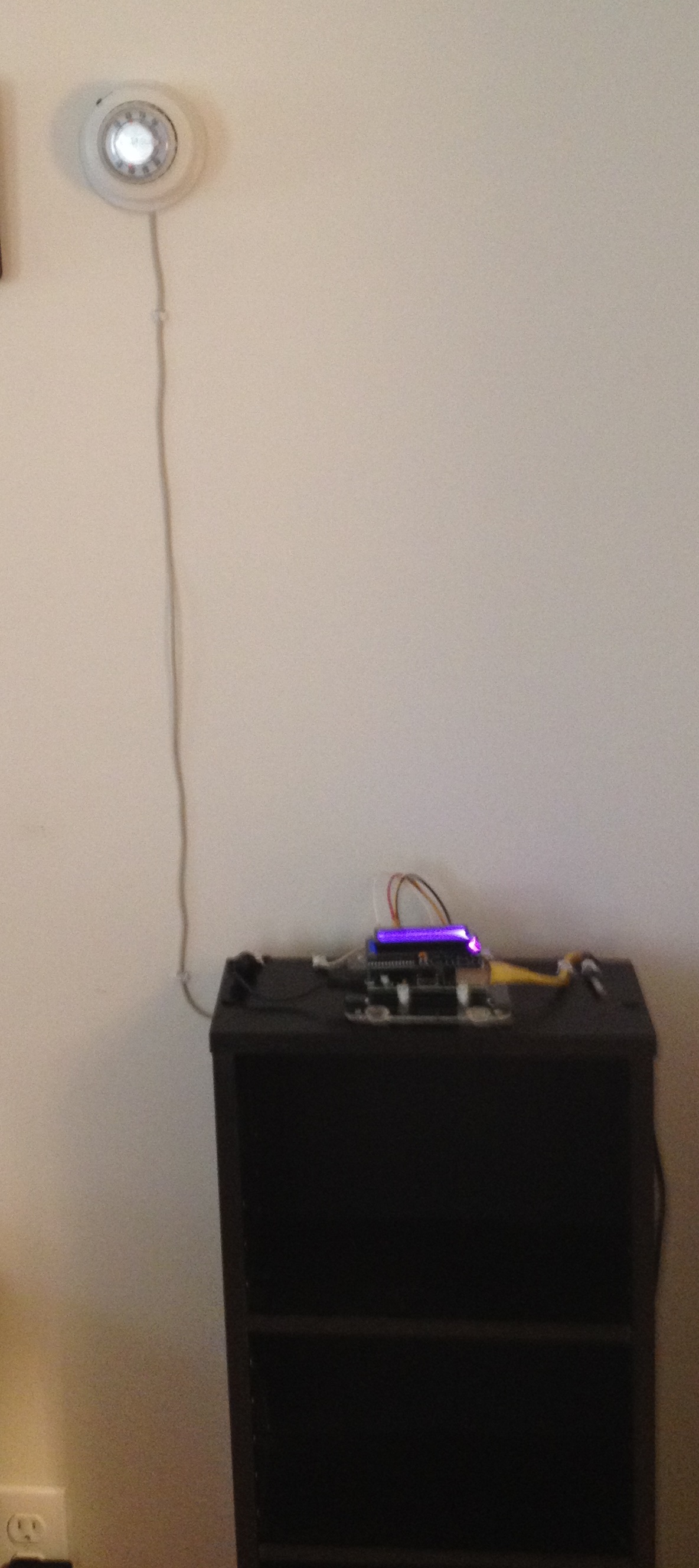
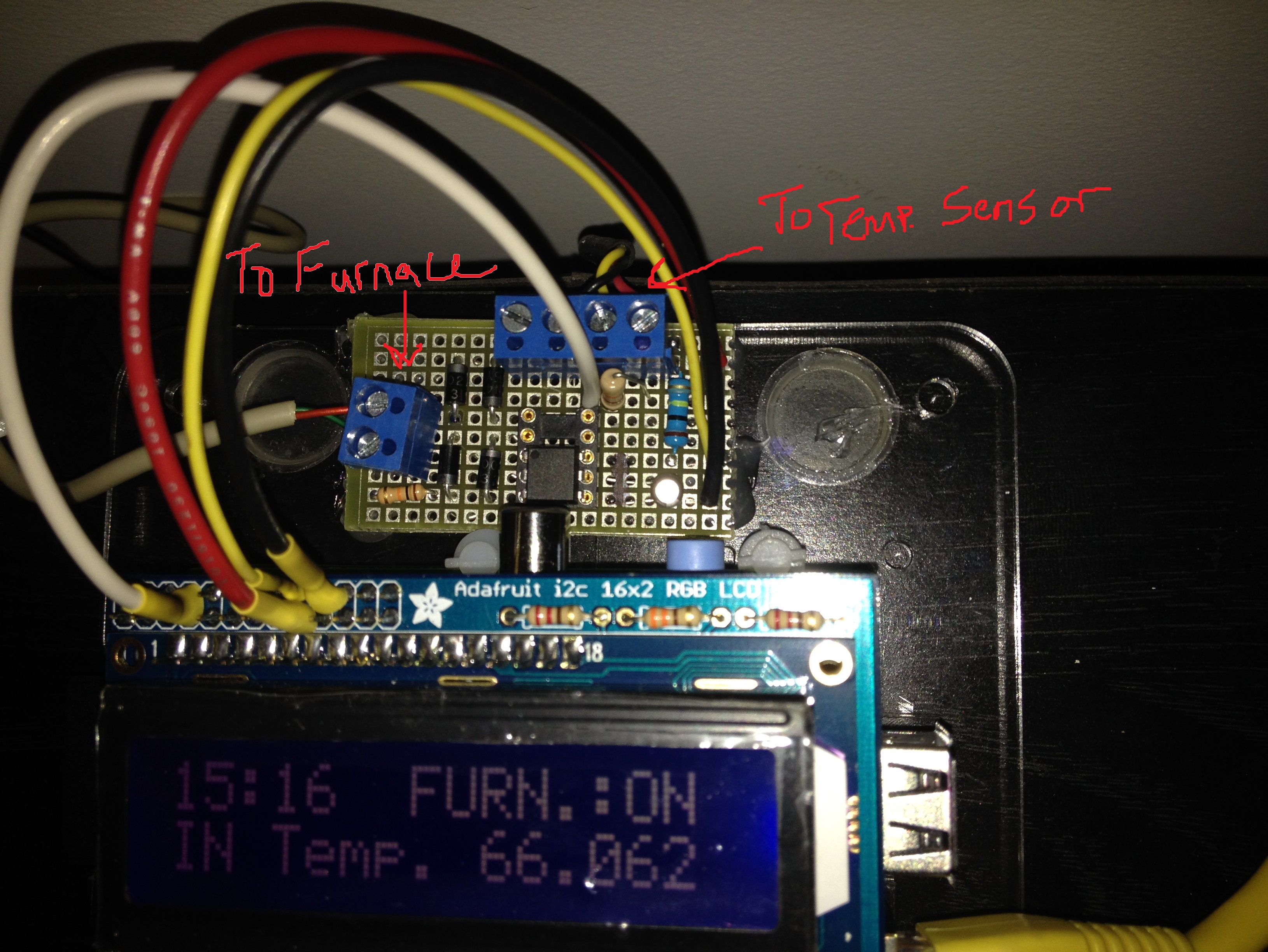
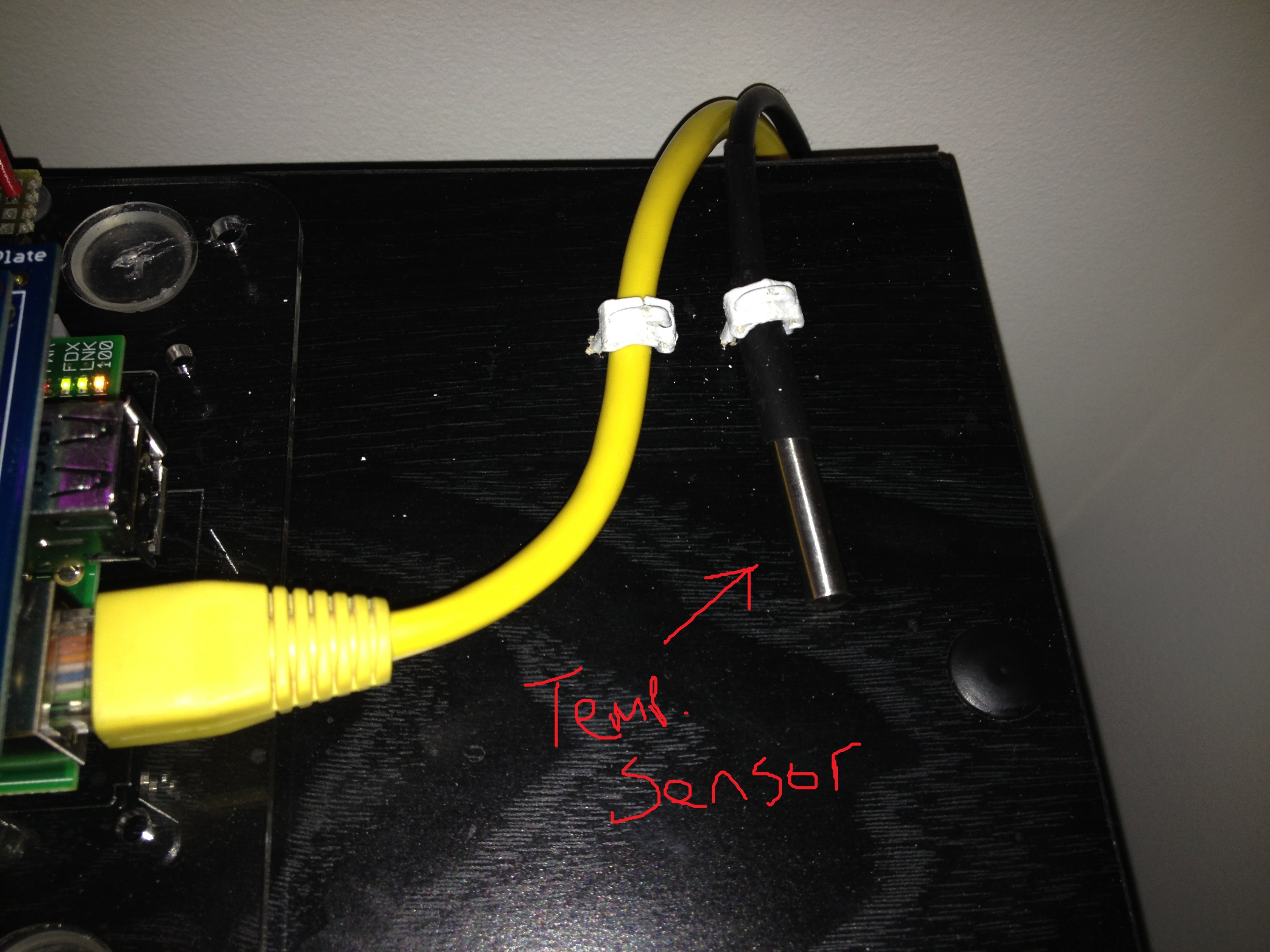
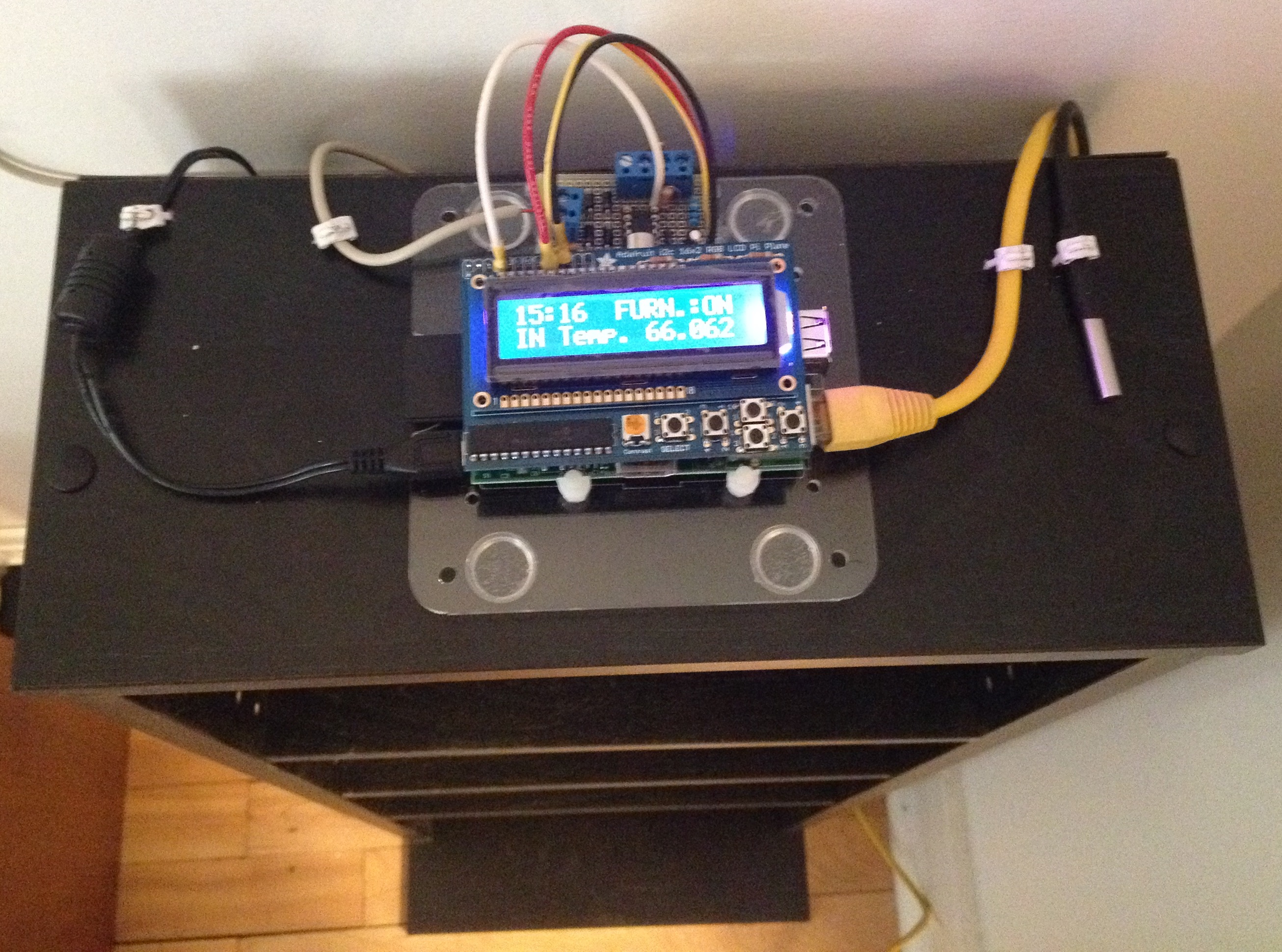
After much programming (That will be a future post), I had all the parts working.  So it was time to put the unit together.  I plugged the LCD screen into the pi, then soldered some wires to the backside of the header-pins on the LCD shield.  The other ends of the wires go to some proto-board where I built the schematics pictured above.  I then added a 2-conductor wire in parallel to the thermostat and connected the other end to the pi’s “furnace” input.  I wired up the Temperature sensor.  I mounted it all to a bookshelf and fired it up.
thermostat_pi proto-board temp-sensor pi_installed_edit

show_graph


CNC Sign

Jesse unveiled the finished product in a previous post, and it does look awesome.  Here are some photos and a simplified and incomplete account of how we got there.  Disclosure, this took place off-campus of Laboratory B as we do not currently have the tools on-site.

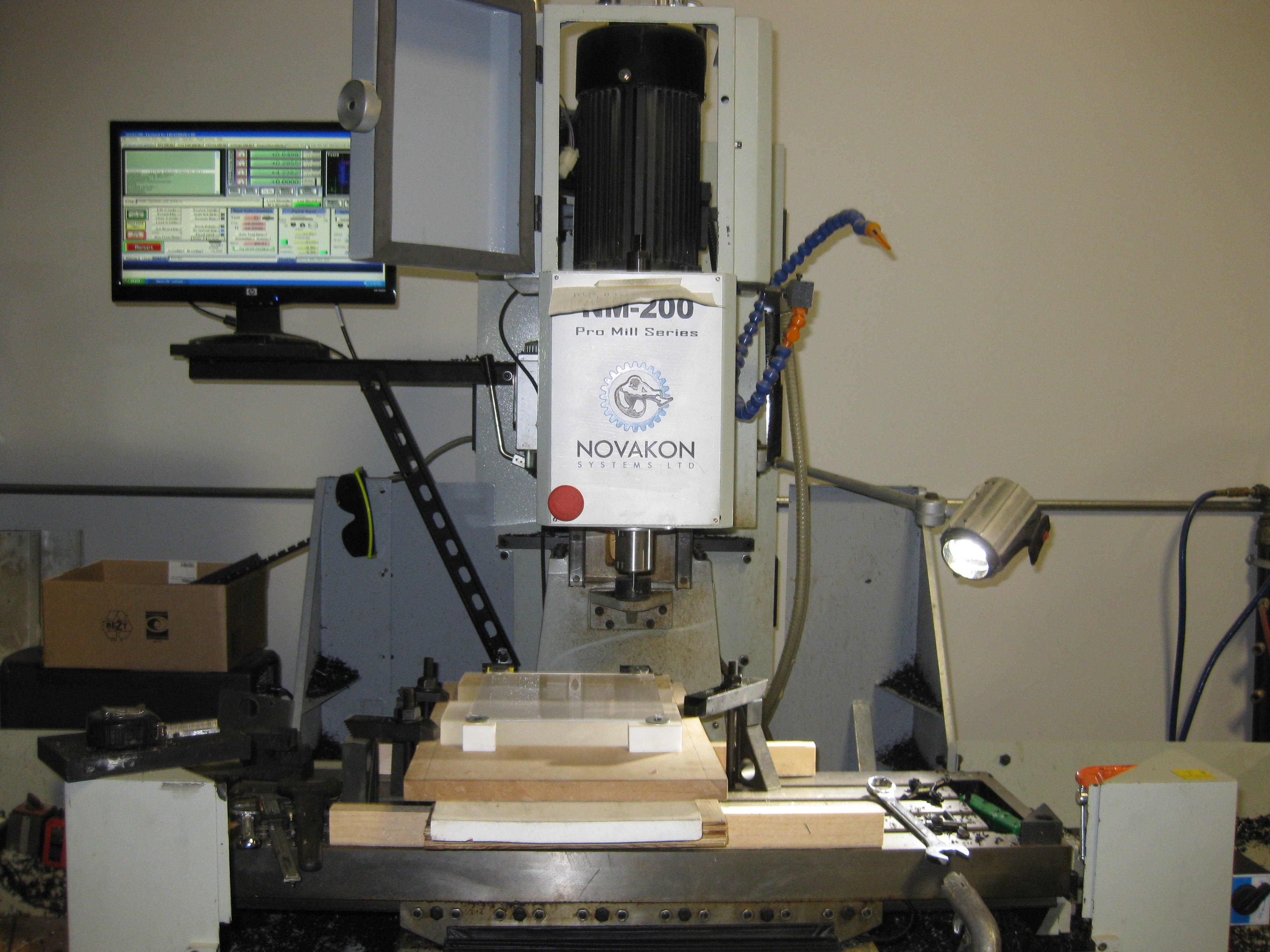
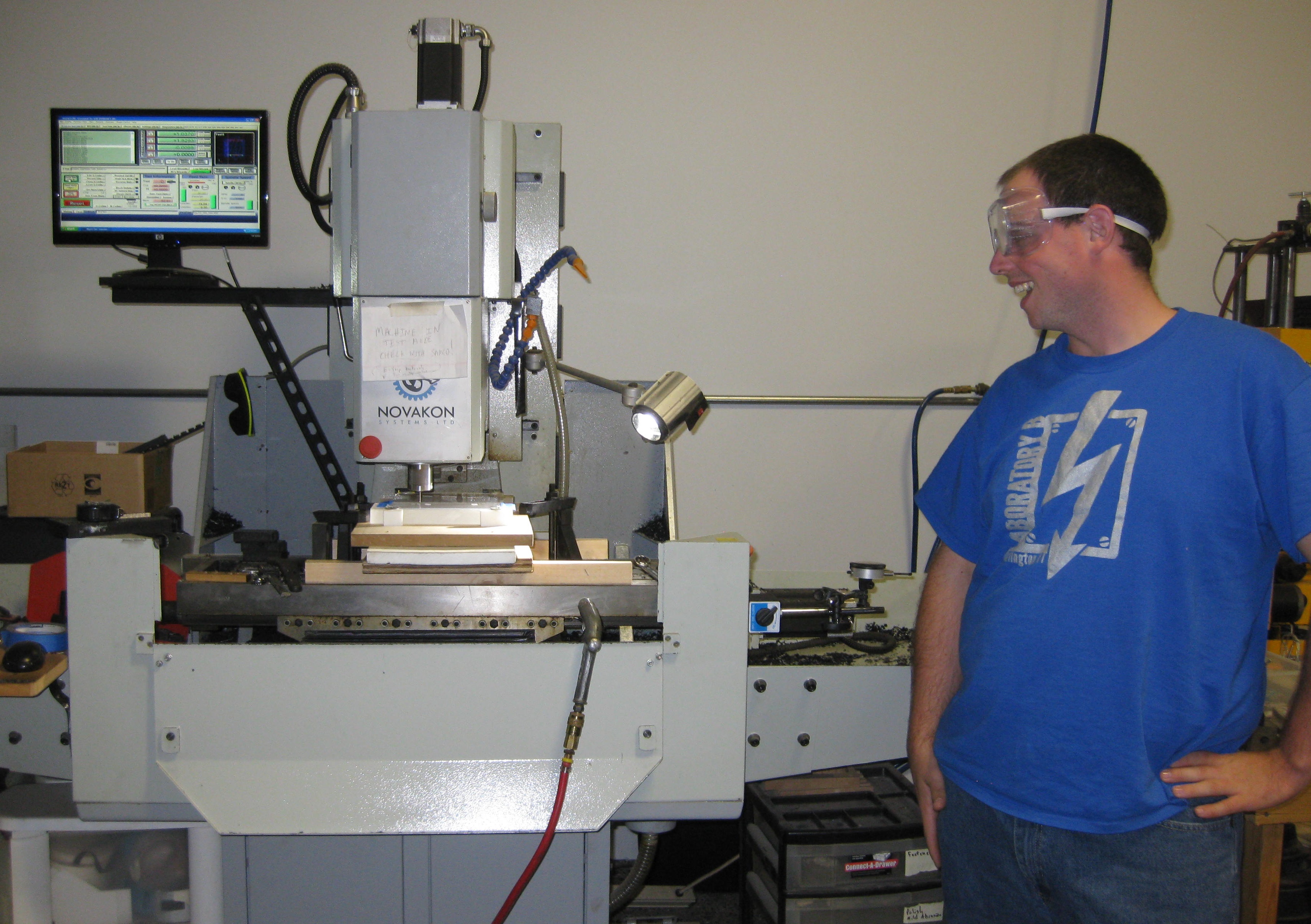
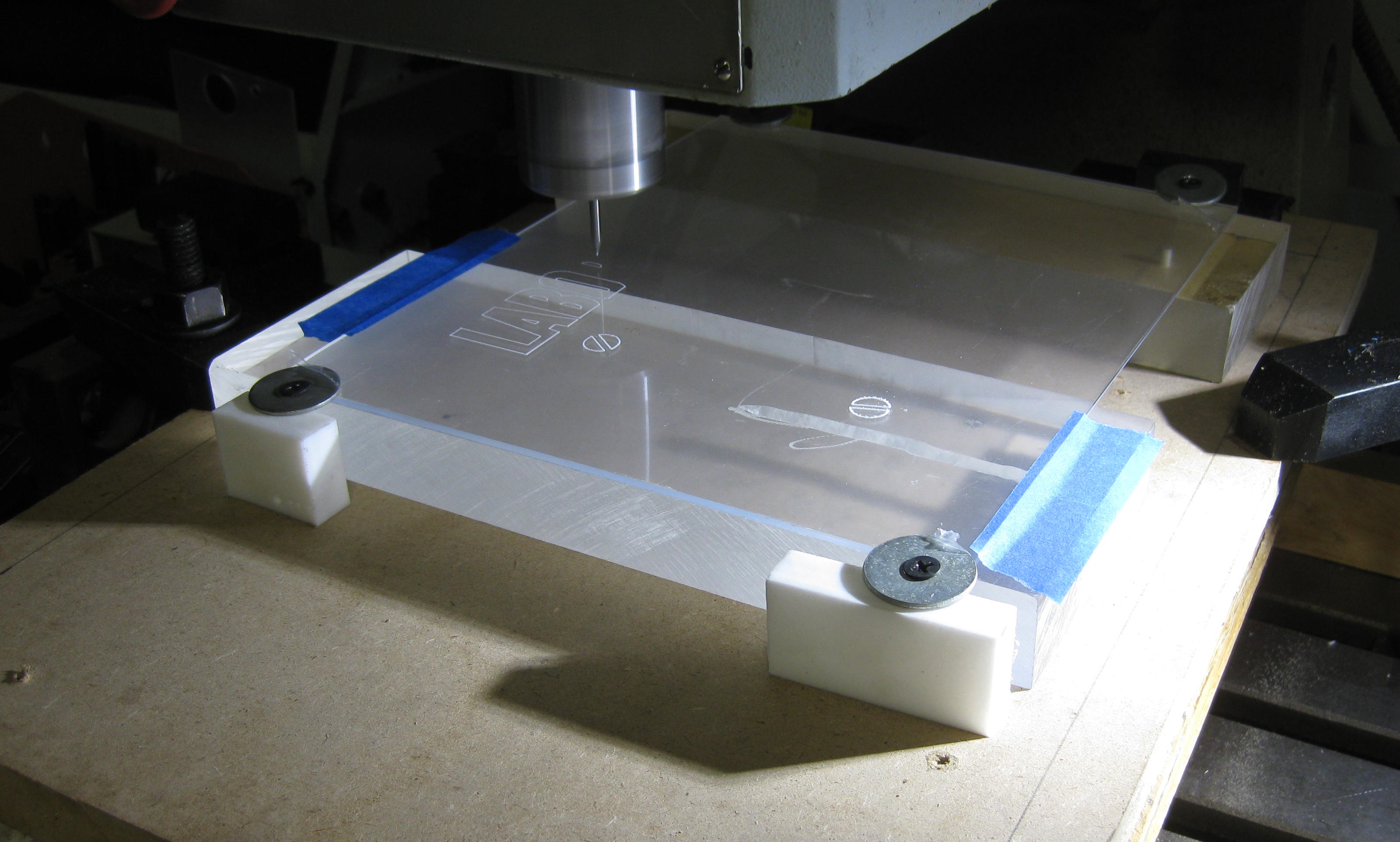
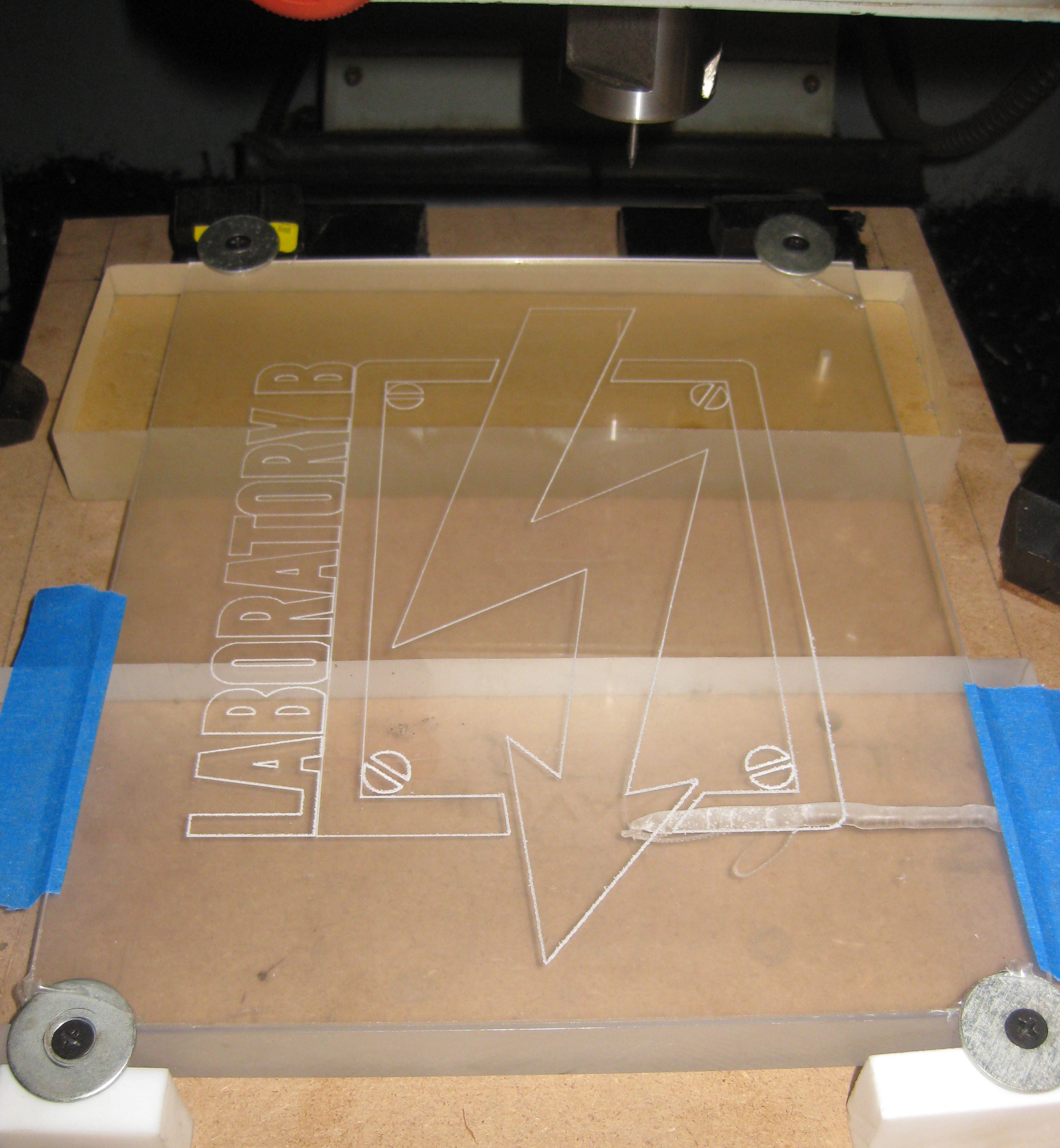
This sign was created by etching a sheet of acrylic and then edge-lightning the result.  The etching is basically a shallow cut that causes light in the material to reflect out.  The cutting was accomplished using a computer numerical controlled (CNC) milling-machine.

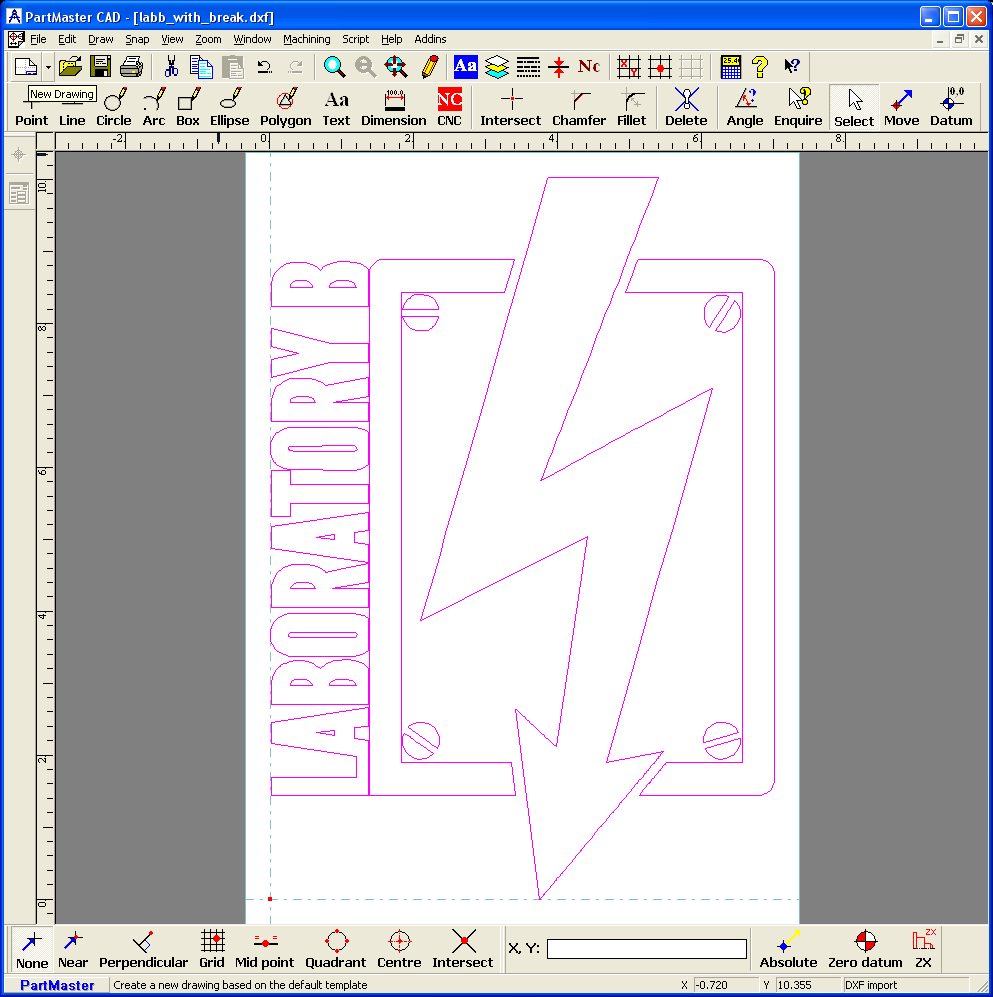
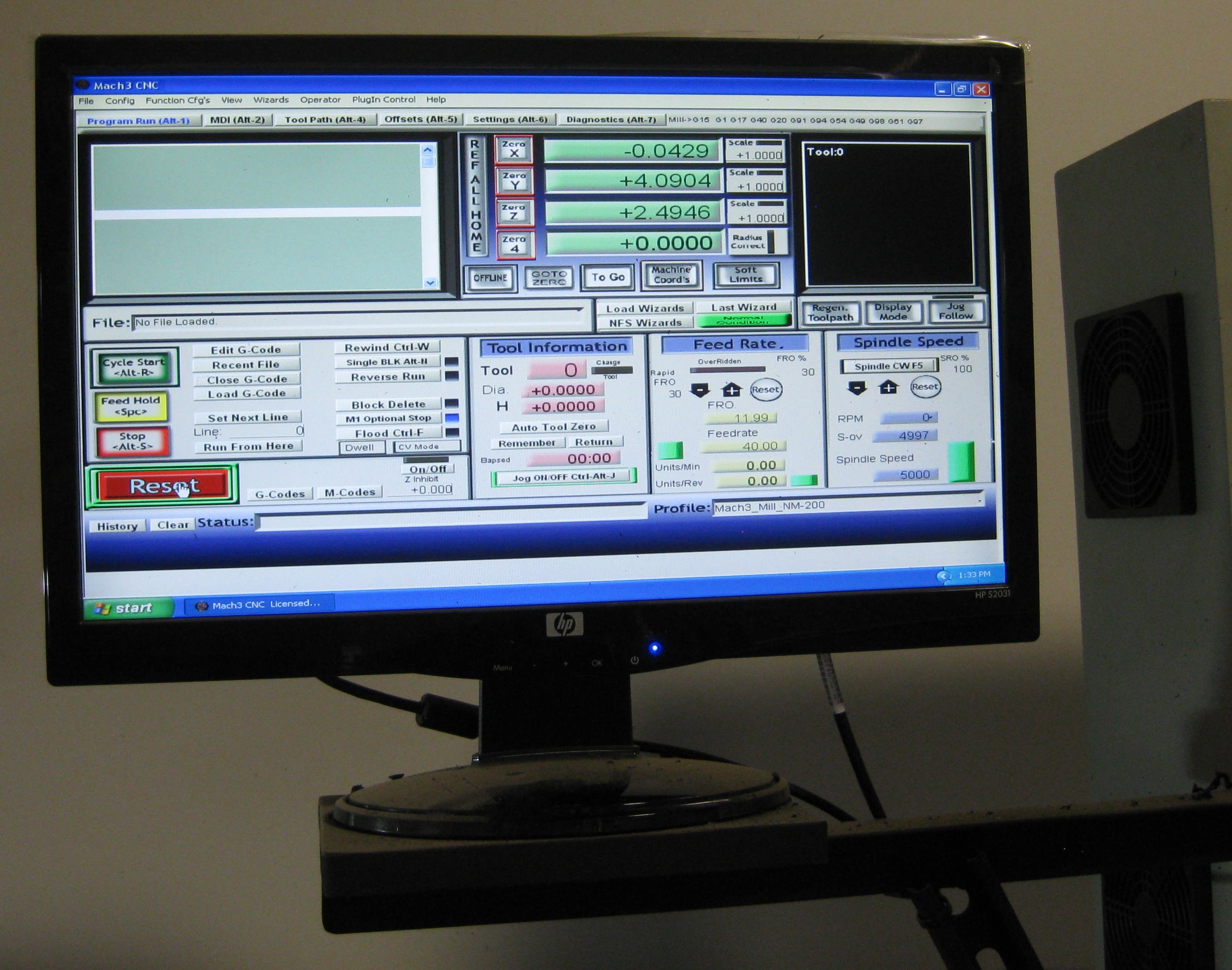
First, we started with a high-res version of the Laboratory B Lightning Bolt (credit to Brenton).  This was imported into a program called PartMaster and converted to a .dxf file.  From this CAD file, we asked the computer (nicely) to generate G-code.  G-code is what we needed to describe to the CNC machine how to move the cutting bit and etch the material.  The CNC machine is controlled by a program called Mach3 CNC.  This software reads text file containing the G-code and interfaces with the milling-machine to move the XY table and the drill head (Z) in order to accomplish the cut.

blogshot1 blogshot2

The milling-machine we used for this project was… a little too big.  We wanted to use the whole 10″ x 8″ sheet so we used the big machine, but since it’s not a router, it is normally used with R8 Collets…. the point is, the chuck we used to hold the etching bit was too short.  You can see in this next photos that we couldn’t reach the table and had to add some height to the mounting of the acrylic.  Once this was done, we “zeroed” the machine.  This is a process where we tell the Mach3 software what the location of the material to be cut is, so that it moves everything into the right place at the right time.  Then we hit “START” and watched!  Action shots follow, complete with my watching through my safety goggles.

blogshot3 blogshot4 blogshot5 blogshot6

Procrastination Success

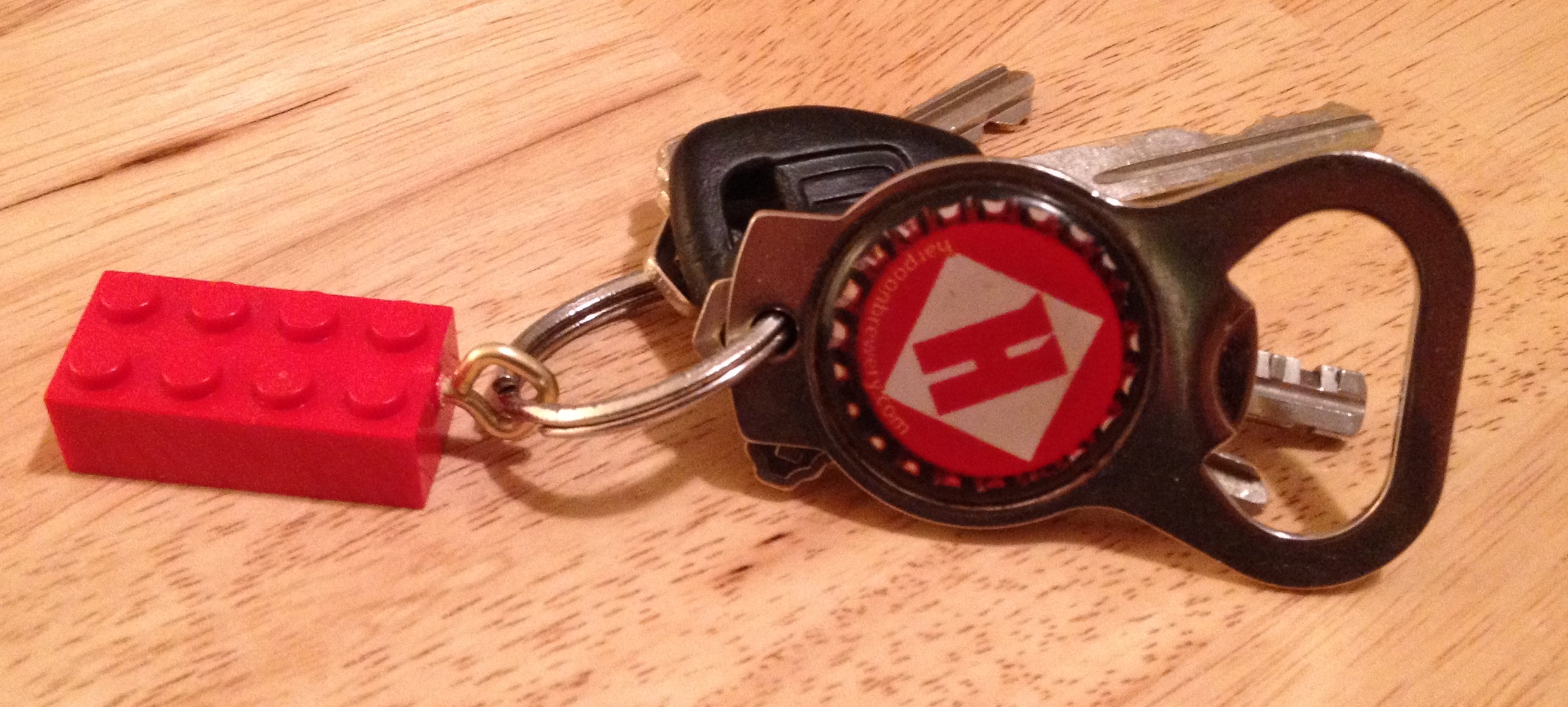
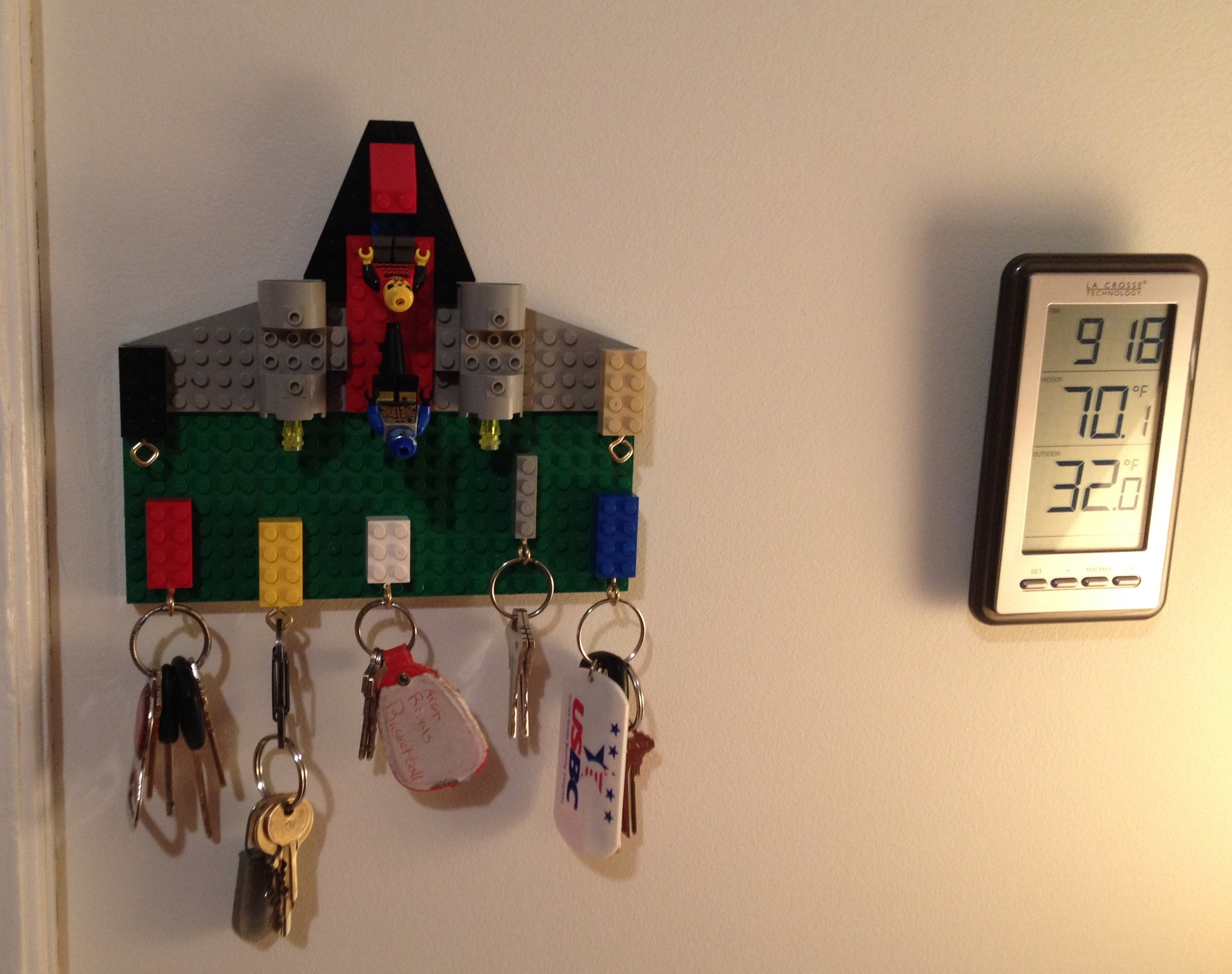
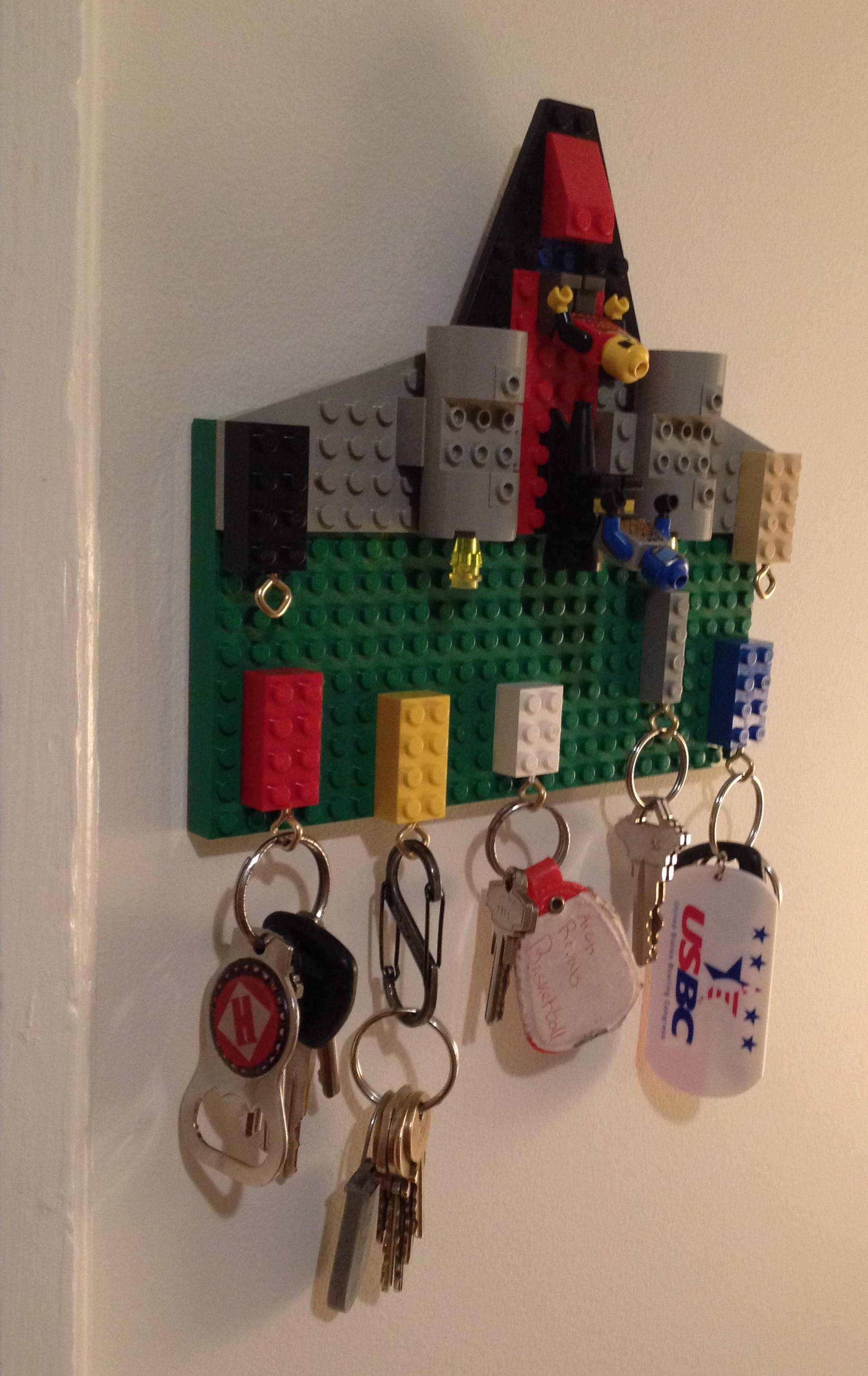
I should have been grading lab reports, but instead I made this key holder with some Legos.  I screwed some picture frame hooks into a few full-height blocks (2×4, 2×3, 1×4) and attached a large base to the wall.  Put some key rings on the Legos, attach the Legos to the base, key holder.  My favorite part is that I can add whatever creation I want to the base plate as long as it can sit vertical, which is always true because it’s Legos.  This is a simple spaceship I put together in a few seconds.

keys

front left